Security Camera Recording: 5 Mistakes Brisbane Owners Make
A mum from Kenmore checked her security app one afternoon after a neighbour posted about a suspicious car in their local Facebook group. She found the footage, thought she had what police needed — then looked closer. The image was blurry. The timestamp was wrong. And the camera covering the back gate had stopped recording entirely, silently, weeks earlier. By the time she called Queensland Police, there was nothing usable to share.
Most Brisbane homeowners assume their cameras are working correctly once installed. The app is open, the cameras show a live feed, the green light is on. But security camera recording is a different thing to a live view. Recording settings get misconfigured. Storage fills up. Motion detection zones miss the spots that matter. None of these problems announce themselves — they sit quietly until the one moment you actually need the footage.
In this guide you'll find the five most common security camera recording mistakes we see in Brisbane homes, what causes them, and exactly what to fix — whether you have a wired NVR system, wireless cameras, or a hybrid setup.
Why Is My Security Camera Not Recording? (Quick Answer)
Security cameras stop recording for five main reasons:
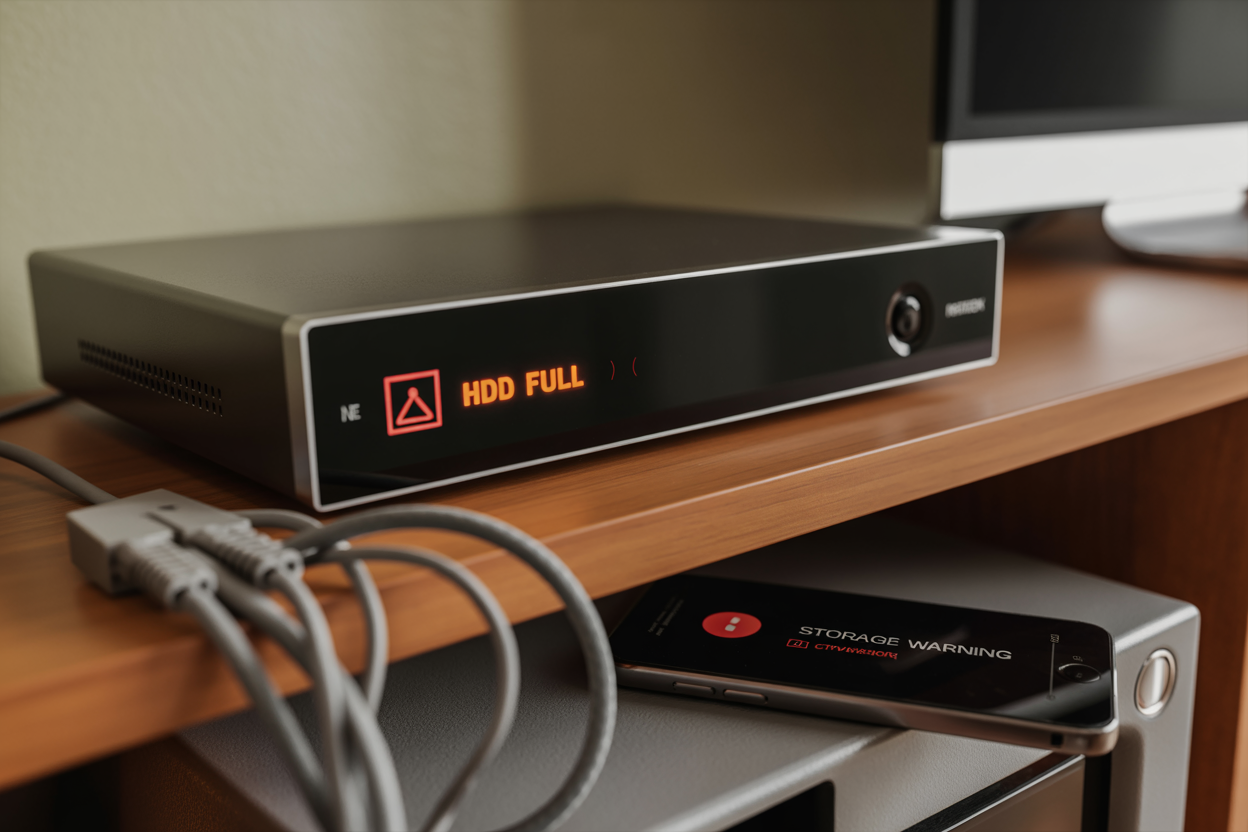
Storage is full — When your hard drive, SD card, or cloud storage hits capacity, most systems either stop recording completely or start overwriting old footage — with no alert sent to your phone
Motion detection is misconfigured — Cameras set to record only on motion can miss events entirely if the sensitivity zones are too narrow or set too low
Power or connection issue — Wireless cameras that lose their WiFi signal or drop power will stop recording silently, with nothing to tell you it's happened
Recording schedule gaps — Many systems ship with a default recording schedule that leaves hours of the day completely uncovered
App or firmware not updated — Outdated firmware causes recording failures that aren't obvious until you go looking through playback
Each of these mistakes is covered in detail below.
The 5 Security Camera Recording Mistakes Brisbane Homeowners Make
Before we get into each one — these mistakes aren't about buying cheap cameras or having a bad installer. They happen to well-installed systems all the time. Recording settings drift, storage fills quietly, and things that worked fine at installation can develop gaps over months without anyone noticing. If you recognise any of these in your own setup, you're in good company — and every single one of them is fixable.
Mistake #1: Your Storage Fills Up and Nobody Notices
This is the most common recording failure we come across — and the most preventable.
How security camera recording storage actually works
Your system stores footage in one of three ways: a local NVR or DVR hard drive (most common in professionally installed Brisbane homes), an SD card inside each camera, or cloud storage accessed through your camera app.
Continuous recording chews through storage quickly. Motion-triggered recording uses far less space — but only works if the settings are right. Most Brisbane homeowners run motion-only recording to stretch storage out. That's fine in theory. The problem starts when the settings drift.
What happens when Brisbane homes run out of recording space
There are two ways this plays out, and neither one sends you a warning.
The first scenario is that the system stops recording altogether once it hits capacity. No new footage is captured until someone manually clears the storage. The second — and more common — scenario is that the system starts overwriting the oldest footage automatically. In practice that means your most recent footage is replacing evidence you might not know you need yet.
The real-world consequence is simple: if your hard drive filled up on a Tuesday and something happened on a Friday, you have no footage. The cameras were running. The green light was on. But there was nothing left to record to.
How to check and fix your storage settings today
Open your camera app and navigate to device settings — usually labelled "Storage," "Device Storage," or "HDD Management." In Hikvision and Dahua systems it's in the system menu. Reolink shows it directly on the device settings screen. Swann has it under "Recording Settings."
Anything under 20% free is worth addressing now. Enable storage alerts if your system supports them, confirm overwrite is turned on so the system doesn't just stop recording when full, and do a monthly storage check.
Mistake #2: Motion Detection Zones Are Set Up Wrong
Most people assume this is set correctly out of the box — it rarely is.
Why motion-only recording misses critical events
There's an important difference between continuous and motion-triggered recording that doesn't get explained enough at installation. Motion-triggered recording only starts when the camera detects movement within a defined zone — and that zone is something you or your installer configured. If the zones aren't right, you end up with a camera that's technically working but practically blind to half of what's in front of it.
A common example: a camera pointed at the driveway, but the motion zone stops just short of the front footpath. Someone walks along the street, pauses at the letterbox, scopes out the property — and the camera never triggers. No recording. No alert. Nothing.
How to test and recalibrate your motion detection zones
Have someone walk through the areas you want covered — the driveway entrance, the front path, the side gate, the back fence line — while you watch the live feed in your app. If recording doesn't trigger when someone walks through those areas, your zone needs to be redrawn.
Draw zones around high-risk areas specifically rather than covering the entire frame. Set sensitivity to medium rather than low, and use zone exclusions to block out moving trees rather than reducing sensitivity across the whole image. Test at dusk — if your camera picks up a person walking at dusk, it'll handle overnight detection well.
Mistake #3: Your Cameras Go Offline and You Don't Know About It
This mistake is invisible until the moment you need your footage most.
Why wireless security cameras lose connection in Brisbane homes
Wireless cameras are convenient — but convenience comes with a reliability trade-off. Brisbane homes — particularly older Queenslander-style houses with thick timber walls, or larger homes in suburbs like Kenmore, Pullenvale, and Ferny Grove — often have WiFi dead spots at the property's edges. A camera at the back gate might show a strong connection during installation, then drop in and out constantly under normal household load.
NBN connections also drop during storm season — sometimes for hours. Cloud-connected cameras stop recording the moment that connection goes down. Summer storms knock out power regularly too, taking cameras offline with no guarantee of automatic restart.
The silent failure problem
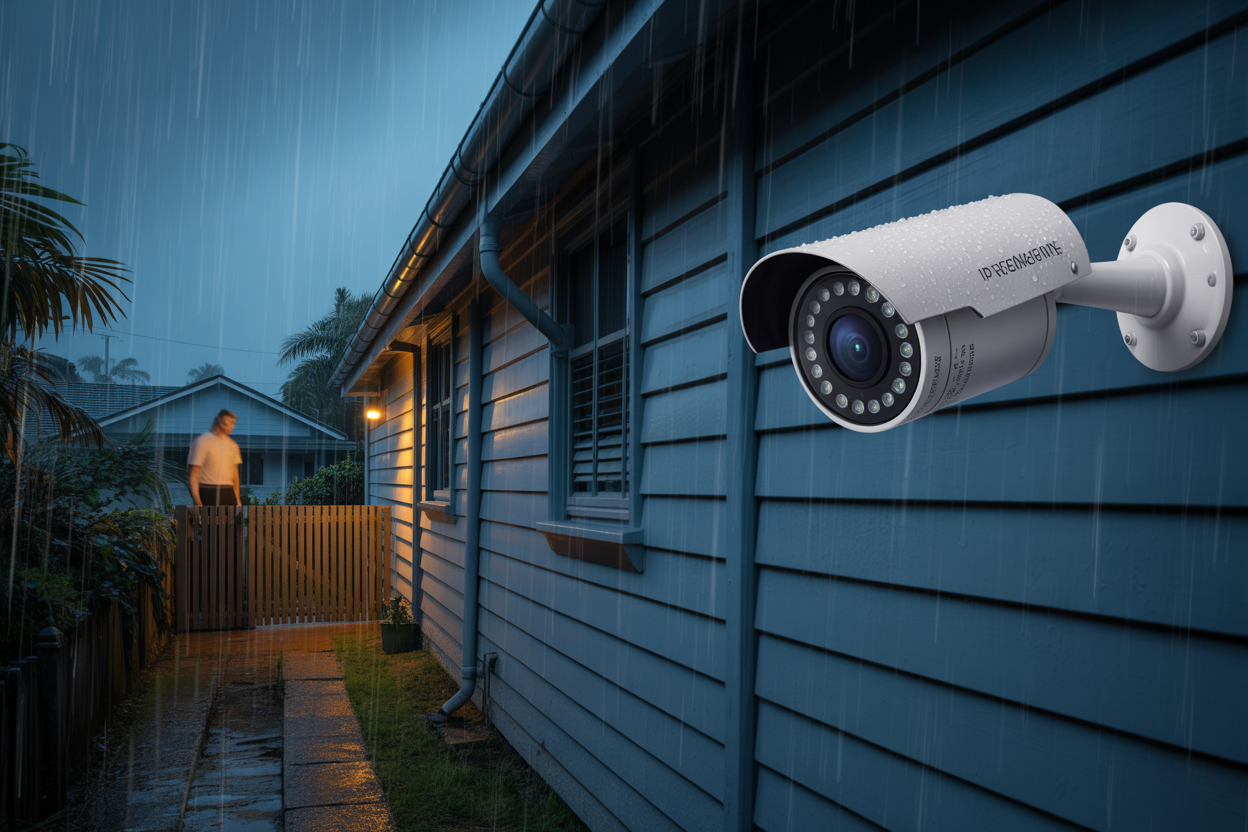
When a wireless camera loses its connection, it shows as "offline" in the app — but only if you open the app and look. There's no automatic alert. The camera quietly disappears from your network and sits there, looking exactly like a working deterrent from the outside, while recording absolutely nothing.
We've attended Brisbane homes where cameras had been offline for six weeks and the homeowner had no idea. The camera was still mounted. The indicator light was blinking. A camera that's offline isn't just failing to record — it's giving you a false sense of security.
How to set up offline alerts and improve connection reliability
Enable offline push notifications in your camera app — in Reolink it's under Device Settings → Notifications → Device Offline Alert; in TP-Link Tapo it's under Notifications → Camera Status; in Hikvision's Hik-Connect app it's under Event Notifications. Turn these on for every camera, not just the ones you're most worried about.
Check your router placement — if cameras at the back of the property drop regularly, a WiFi mesh node placed mid-property often solves it without rewiring anything. And for your most important coverage points — front door, driveway, back gate — consider PoE (Power over Ethernet) wired cameras. They don't rely on WiFi, they don't drop during storms, and they don't need battery backup.
Mistake #4: Recording Schedules Have Gaps You Haven't Noticed
How recording schedules get misconfigured during setup
Most camera systems don't ship set to record 24 hours a day. They come with a default schedule — often 6am to 10pm — which means every night between 10pm and 6am, your system isn't recording anything. Most homeowners never look at this setting. It's buried in the configuration, doesn't affect the live view, and nobody mentions it at handover.
Installer-set schedules create a different version of the same problem. A professional installer configures your system based on your household at the time — but households change. New job, school holidays, daylight saving. Nobody updates the schedule when life changes.
The times Brisbane homes are most vulnerable
According to Queensland Police Service data, property crime in Brisbane tends to peak in the late evening and early morning hours — the exact windows that default recording schedules routinely leave uncovered.
The school run window — roughly 8am to 9am and 3pm to 4pm — is a period of high foot traffic through residential streets combined with a distracted homeowner. You're in the car, focused on the kids, and your property is unattended. In suburbs like Aspley, Bridgeman Downs, and Warner, the weekday morning gap — when both adults have left for work and the kids are at school — accounts for a significant proportion of residential property incidents.
How to audit and correct your recording schedule
Find your recording schedule under Storage → Schedule in Hikvision and Dahua systems; under Device Settings → Recording Schedule in Reolink; and under Recording → Time Schedule in Swann systems. You're looking for a weekly grid showing when your system is set to record. Any gap in that grid is a window where your cameras are live but not capturing footage.
For NVR systems with sufficient storage, set to 24/7 continuous recording. For cloud-based systems, configure motion recording around the clock with continuous recording from 6am to midnight at minimum. And review your schedule every time your household routine changes — treat it the same way you'd update your alarm code.
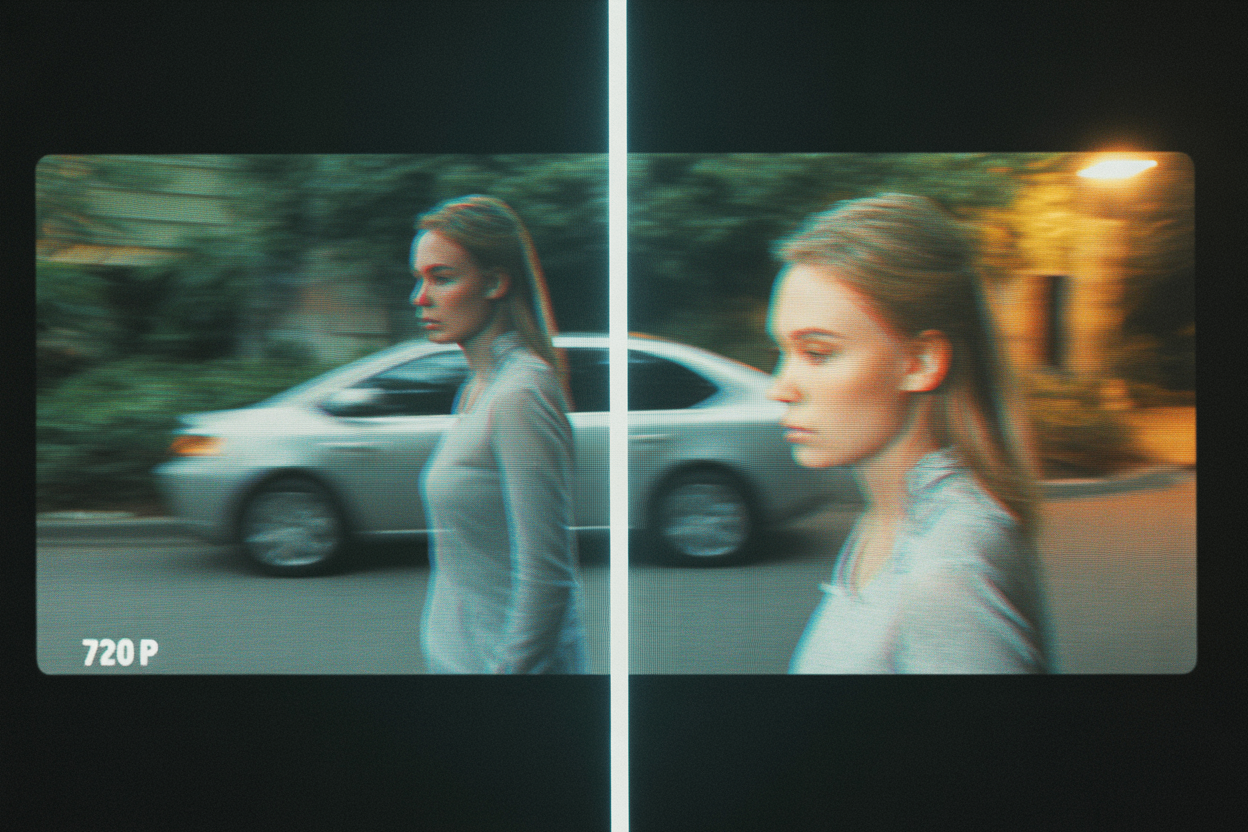
Mistake #5: Video Quality Is Too Low to Actually Identify Anyone
This one surprises nearly everyone — because the camera on your wall might be perfectly capable of recording crystal clear footage, but the settings inside the system are quietly limiting what actually gets saved.
Why recording resolution matters more than camera resolution
Your camera has a hardware resolution — 2MP, 4MP, 8MP — but your recording resolution is a separate setting inside the NVR or app. On most systems, that recording resolution is set lower than the camera's hardware capability to save storage.
So you could have a 4MP camera capable of capturing a clear, identifiable image of anyone on your driveway — but if recording is dialled back to 720p in the system settings, what actually gets saved looks like it was filmed through a frosted window. Queensland Police require a minimum image quality standard for CCTV footage to be useful in an investigation. Footage below 1080p is rarely actionable — faces aren't identifiable, number plates aren't readable.
The night vision recording problem specific to Brisbane
Standard infrared night vision relies on IR light bouncing off surfaces and returning to the camera sensor. In Brisbane's humid summer air, that IR light scatters — producing footage that looks hazy and washed out compared to what the same camera captures on a dry winter night.
Colour night vision cameras handle Brisbane's conditions better. Rather than relying solely on IR, they use ambient light — streetlights, sensor lights, neighbour's porch lights — to produce a colour image at night. Colour information — clothing, car colour, hair — is preserved in a way that black-and-white IR footage can't match. Also watch for cameras positioned toward reflective surfaces — glass panels, pools, wet driveways — which wash out night footage entirely through IR reflection.
How to check and improve your recording quality settings
Navigate to "Video Quality," "Recording Resolution," or "Stream Settings" in your app or NVR interface. Confirm your main stream — not the sub stream — is what's being recorded. Many systems record the sub stream by default to save space. The minimum we recommend: 1080p at 15fps for general coverage areas, and 4MP or higher for entry points and street-facing cameras.
A Final Word — Your System Is Only as Good as What It's Actually Recording
There's a version of home security that feels good and a version that actually works — and they don't always look the same from the outside.
The camera is mounted. The app is installed. The green light is blinking. From the street, your home looks protected. And in most cases it genuinely is — but only if the recording side of the system is functioning correctly. That's the part most people never check. That's the part that quietly fails. And that's the part that only becomes visible in the worst possible moment, when you're sitting across from a police officer trying to explain why there's no footage of the incident that happened three days ago.
The five mistakes in this guide aren't edge cases. We see them regularly across Brisbane homes — in systems installed by professionals, in systems that looked perfect at handover, in systems owned by people who considered themselves reasonably tech-savvy. Storage fills up without alerting anyone. Motion zones that made sense two years ago no longer match how the household operates. Cameras that went offline during a storm weeks ago are still sitting there blinking, looking exactly like they're working.
The good news — and it genuinely is good news — is that every single one of these issues is fixable. Not expensive to fix. Not complicated to fix. Most of the settings adjustments covered in this guide take minutes in your camera app and require no tools, no ladder, and no technical knowledge beyond what you'd need to update your phone settings. The harder part is simply knowing what to look for, which is exactly what this guide is for.
What we'd encourage you to do after reading this is simple: go and check. Not just the live view — actually review footage, check the recording schedule, look at your storage levels, and verify every camera shows as online. Do the 15-minute self-check above. If everything comes back clean, you'll have genuine confidence in your system for the first time — not just the assumption that it's probably fine. And if you find something that needs attention, you now know exactly what to do about it.
A security system that's installed but not correctly recording is really just a deterrent — and a limited one at that. A system that's recording consistently, at the right quality, across all the right hours, with alerts configured to tell you if something goes wrong — that's a system that's genuinely protecting your family. That's what you paid for. That's what your family deserves. And with 15 minutes and the right information, it's completely within reach.